
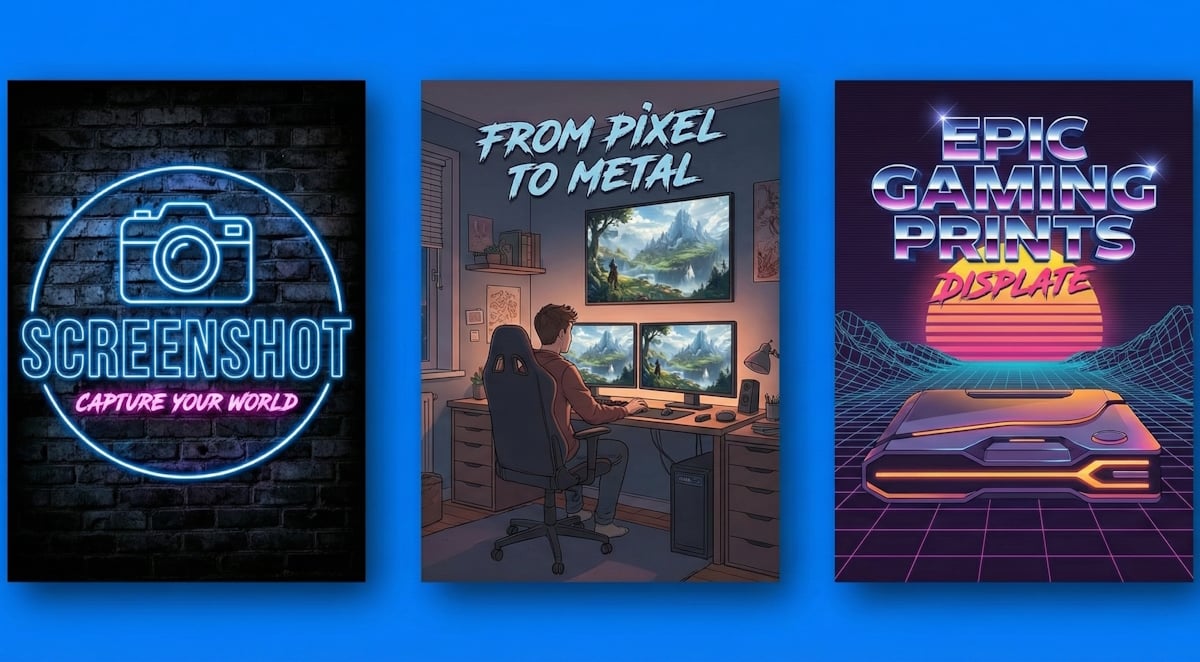
We’ve all been there. You’re deep into a game, chasing the perfect moment—maybe you’ve just nailed a flawless speedrun, or the victory screen pops up in all its glory. You instinctively pause. You hide the HUD. You tilt the camera just right. Click.
You’ve captured a masterpiece.
But then what? Usually, that screenshot sits on your hard drive, buried under terabytes of save files, or gets a fleeting “like” on social media before scrolling into oblivion.
It deserves better. It deserves to be a centerpiece.
With Custom Displate, you can pull that digital memory out of the screen and magnet-mount it onto your wall. But here’s the thing: printing on steel isn’t the same as printing on paper. Metal is premium, durable, and textured—but it’s also unforgiving if your source file isn’t perfect.
Whether you are a casual gamer with a cool snapshot or a hardcore Virtual Photographer using camera mods, this guide will help you materialize your digital memories.
The Big News: Custom is for Everyone
First, a quick PSA. Historically, printing your own images on Displate was an exclusive perk for Club members. Not anymore. The gates are open. The Custom Displate tool is officially unlocked for every registered user.
Whether you’re a pro virtual photographer or just a gamer with a good eye, you now have the power to curate your own physical collection.
Phase 1: The “Golden Rules” of the File
Before we even talk about taking the picture, you need to know the destination. While the new Custom Displate tool is smarter than ever, mastering the specs is still key to getting that “gallery quality” look.
1. Formats & Resolution: More Flexible than Ever
Good news: The system is now far more forgiving than in the past.
- Accepted Formats: You can upload JPG, PNG, WEBP, and AVIF (as seen in the creator tool).
- The Resolution: The minimum requirement for the shorter side is 2900 pixels. However, aim higher (e.g., 4000 x 5600 px) for the best results.
- Built-in Help: If your image is slightly smaller (like a standard 1080p screenshot) or taken with a phone, the updated upload tool now says: “you can upscale your images within this process.” This is a game-changer for accessibility!
2. Respect the Edge (The Safe Zone)
Displates are made of steel. To finish them, the edges are folded back during manufacturing.
- The Danger Zone: Anything within 200 pixels of the edge is at risk of being cut off or folded over.
- No Borders: Do not add white frames or “passe-partout” borders digitally. If the cutting machine shifts by even 2mm, your border will look uneven, and the file might be rejected.
- Non-Returnable: Remember, Custom Displates are non-returnable. Since you are the artist, there is no “quality check” by Displate staff—what you upload is exactly what gets printed. Check your preview twice!
3. The Color Profile: sRGB Only
This is where pros often trip up. You might edit in AdobeRGB for a wide color gamut, but Displate’s production line is tuned for sRGB.
- The Fix: Always “Convert to Profile: sRGB IEC61966-2.1” before saving. If you don’t, your vibrant neon city might look washed out or “greenish” on the metal.
Phase 2: Taking the Shot (The “God Mode” Tools)
How do you get a massive, crisp image if your monitor is only 1080p? Welcome to the world of Hotsampling and Camera Injection.
Hotsampling: Breaking the Monitor Barrier
You don’t need a 4K monitor to take 4K shots. You just need to trick your GPU.
- The Tool: SRWE (Simple Runtime Window Editor).
- How it works: You run the game in “Windowed Mode.” You hook SRWE to the game process and manually type in a resolution (e.g., 4000 width, 5600 height).
- The Result: The game window might turn black or shoot off the side of your screen. That’s okay. The GPU is still rendering it. Hit your screenshot key, and voilà—a massive, native-resolution image.
Unlocking the Camera: Otis_Inf Tools
The default “Photo Mode” in games often has annoying limits. You can’t move the camera through walls, or the “pause” doesn’t work during cutscenes.
- The Solution: Camera tools by Otis_Inf (Frans Bouma).
- Why use them?
- Timestop: Pause the game mid-swing during a boss fight.
- FOV Control: Zoom way in (low FOV) for cinematic portraits that look like they were shot with an 85mm DSLR lens.
- Camera Uncap: Move the camera anywhere to find angles the developers never intended you to see.
Phase 3: Upscaling – Built-in Tool vs. Pro Tools
Here is where you make a choice: “Easy Mode” or “God Mode.”
Option A: The Built-in Upscaler (Easy Mode)
As confirmed by the new Creator Tool interface, you can now upscale your images directly within the process.
- Best for: Casual screenshots, photos from your phone, or when you just want a quick print without installing extra software. It’s fast, convenient, and handles the math for you.
Option B: The “Pro Method” (God Mode)
Why do it manually if the tool does it for you? Control. Automated upscalers sometimes smooth out textures that should be rough (like rock or armor). If you want total control:
- Use External AI: Tools like Topaz Gigapixel AI or the free Upscayl (using the “Real-ESRGAN” model) allow you to tweak the “denoise” and “sharpen” sliders.
- The “Hybrid” Technique: Upscale your image 2x externally, open it in Photoshop, and add 1-2% Monochromatic Noise (Grain). This film grain helps the digital image bond visually with the physical texture of the metal print, preventing that “plastic AI look”.
Phase 4: The “Dark Print” Problem (And How to Fix It)
This is the #1 complaint from first-time creators. “My print looks too dark!”
The Science: Your monitor emits light (it’s a lamp). A metal poster reflects light. A scene that looks moody and atmospheric in a dark room on an OLED screen will look like a black blob on a matte metal sheet.
The Fix:
- Open your screenshot in an editor.
- Boost Exposure/Gamma by about 15-20%. It should look “slightly too bright” on your screen.
- Lift the Shadows: Use Curves to ensure your blacks aren’t “crushed” (pure #000000). You need detail in those shadows for the ink to catch.
Phase 5: Matte vs. Gloss – Choosing Your Vibe
You’ve got the file. Now, which finish do you choose in the Displate builder? This isn’t just a price difference; it’s an artistic choice.
| Feature | Matte Finish | Gloss Finish |
| Look | Satin, textured, museum-like. | Shiny, wet, high-contrast. |
| Reflection | Minimal glare. Great for bright rooms. | High glare. Acts like a mirror/glass. |
| Best For | Painterly styles, landscapes, vintage. | Neons, high contrast, blacks, metallics. |
Your Turn: Curate Your World
Virtual photography is more than just hitting F12. It’s about stopping time in a world that never stops moving. It’s about finding beauty in the geometry of a level design or the emotion on a character’s face.
Your gaming moments shouldn’t die in a folder. They should be hanging above your setup, mounted securely (and tool-free!) with our magnet system, reminding you of the journeys you’ve taken.
Ready to materialize your digital memories?
