
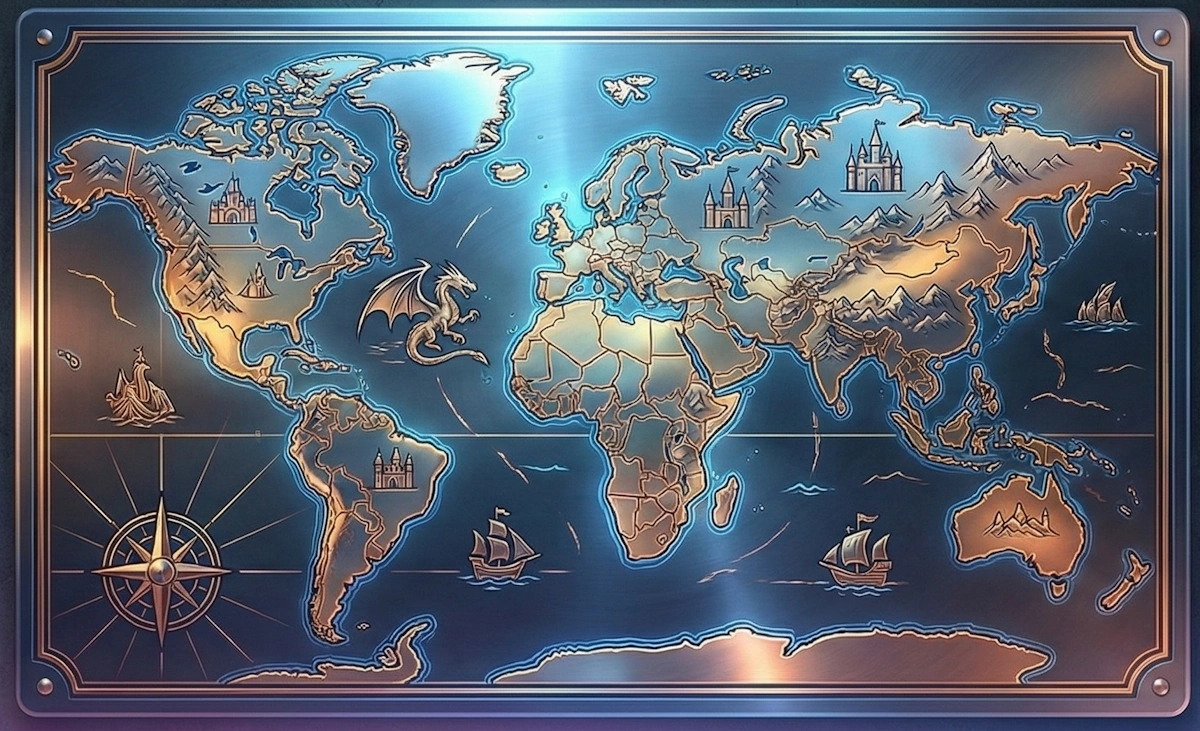
As Game Masters (GMs), we are the architects of imagination. We spend hundreds of hours in Inkarnate or Wonderdraft, carving out coastlines, naming every backwater village, and hiding dragon lairs in mountain ranges. But let’s be honest: the moment your party sees the World Map for the first time is the turning point of the campaign.
Do you really want that moment to happen on a crinkled sheet of A4 paper that runs out of ink halfway through the ocean? Or on a cramped laptop screen where players have to squint, asking, “Is that a river or a crack in the screen?”
Your world deserves better. It deserves to be the centerpiece of your gaming room. It’s time to pull your map out of the digital void and forge it in steel. Literally.
In this guide, we will walk you through the quest of creating your own Custom Displate featuring your unique fantasy world. This isn’t just decoration—it’s a relic that will survive every edition change.
Why Metal? A Level-Up for Your Space
Before we dive into pixels and DPI, let’s roll for Perception: Why Displate?
- Dwarven Durability: Paper tears and battle mats get stained. A metal poster is virtually indestructible in domestic conditions. It’s a legacy item.
- Magnetic Mounting: Renting your dungeon? Changing themes often? Displate mounts on a magnet in 20 seconds with no drilling. Want to swap the map of the “Old World” for the “New Continent” mid-session? Snap—and it’s done.
- The “Wow” Factor: Metal prints offer a unique color depth and texture that no framed paper print can match. It looks premium. It looks like art.
Step 1: Choosing Your Weapon (The Software)
Not every file is ready for the large-format battlefield. If you just take a screenshot, the result on the wall will look like an 8-bit retro game. You need to export with print in mind.
Wonderdraft
The king of export control. Wonderdraft allows you to set the canvas size to match Displate’s requirements right from the start.
- The Verdict: Excellent for print. Just be careful not to use low-quality custom assets found online, as they will look blurry against the sharp generated terrain.
Inkarnate
The browser-based giant. Here, you need to be careful. The Free version (2K export) is not enough for a medium or large poster.
- The Verdict: You need the “Creator” or “Studio” plan to export in 8K. This is the only way to ensure your tiny town names are readable. Remember: Export at the highest possible resolution!
Azgaar’s Fantasy Map Generator
For the technical wizards. Azgaar generates vectors, which is fantastic for scalability.
- The Verdict: Great news! While older workflows required strict JPG conversion, the modern Custom Displate tool accepts JPG, PNG, WEBP, and AVIF. For Azgaar maps, exporting to PNG is the best choice to keep those political borders and text labels razor-sharp.
Step 2: The Boss Fight (Technical Specs)
This is where many adventurers fail. But not you. To make your Custom Displate look professional, you must satisfy the technical requirements.
1. Resolution & Upscaling
For a standard poster (Medium or Large), aim for a canvas resolution of at least 4060px x 2900px. What if your file is smaller?
- Option A (Built-in): The Custom Displate upload tool now features a built-in upscaling process. This is a lifesaver if you are missing a few hundred pixels.
- Option B (For Perfectionists): If your map contains tiny text (like village names), we still recommend generating the file at full resolution natively in your software to ensure 100% legibility.
2. The Safe Zone
Metal bends at the edges during manufacturing. The process effectively “eats” a bit of the graphic at the border.
- The Rule: Do not place any text, city labels, or legends closer than 200 pixels from the edge. If you write “The Sea of Storms” right on the border, your wall will just say “e of Stor”.
3. Lighting (Cast ‘Light’)
Here is a secret tip: Metal prints darker than paper, and your monitor is back-lit. What looks like a moody, atmospheric dungeon on your screen might turn into a black blob on metal.
- Pro Tip: Before uploading, open your map in an image editor and boost the brightness by about 15-20%. The image should look slightly “washed out” or too bright on your screen. On the wall, it will look perfect.
Step 3: The Finish – Matte or Gloss?
This is the most common question for Custom creators. The answer depends on the “vibe” of your campaign.
Choose MATTE if:
- Your world is classic fantasy (D&D, Pathfinder, Warhammer).
- The map is styled to look like old parchment, leather, or a hand-drawn tactical document.
- You want the map to feel like a diegetic artifact (an object that actually exists inside your game world).
- Matte doesn’t reflect glare, so geographical names are readable from every angle.
Choose GLOSS if:
- You are running a Sci-Fi, Cyberpunk, or Space Opera campaign.
- Your map is a “holographic display,” a star chart, or features neon colors against a black background.
- You want that deep, “wet” black look for space or deep oceans.
For Empire Builders: The Multi-Plate Setup
Is one poster not enough to contain your massive world? Build a Mega-Map. You can split your image into 2, 3, 4, or even 8 sections and order them as separate Custom Displates to create a giant mural.
Technical Warning: Mind the gap! The plates do not touch perfectly (there is a millimeter gap + the curved metal edge).
- Golden Rule: Never split text across plates. Move a city name so it sits entirely on the left or right plate. You can slice through a river or a mountain range—the brain fills in the gap. But a sliced letter “A” just looks like a typo.
Conclusion
Putting your own map on the wall is more than just decor. It’s a trophy. It is physical proof that the world you created in your mind is real—at least to the people sitting at your table.
The next time your players ask, “Where exactly are the Misty Mountains?”, you won’t have to dig through files on a hard drive. You will stand up, point to the gleaming steel on your wall, and say: “Right there. And death awaits you.”
Ready to bring your world to life? 👉 [Go to the Custom Displate Creator and start crafting]
